
USB Connection

(If you connected your wheel via passthrough during the mounting step, you can skip this chapter.)

NOTE

Using a powered USB hub helps prevent connectivity issues. We highly recommend the following connection method:
(For best stability max. USB Cable length 3m)

PC
POWERED USB HUB
Coiled Cable
Connect to PC diagram

Connect to PC

1
Coiled USB Cable (PC-side)
Ensure your powered USB hub is connected to your PC and power source, then connect the cable to the powered USB hub.
2
Coiled USB Cable (Wheel-side)
Connect the cable to your wheel, ensuring the keyed portion lines up with the connector in the wheel (see Step 3).
3
Keyed Connector
The wheel-side of the cable has a small notch. Ensure this notch is oriented at the top so it easily connects to the wheel. Thread the metal coupling to the wheel until snug.
4
Strain relief
Ensure that there is sufficient strain relief for the cable. Once connected, slowly and carefully rotate the steering wheel through its full range of motion until it reaches the bump stop. Verify that there is no tension on the cable at maximum rotation. Excessive strain on the cable—especially while the wheelbase rotates violently—can cause damage to the cable, the USB host port (USB hub or PC), and the steering wheel itself.

Software

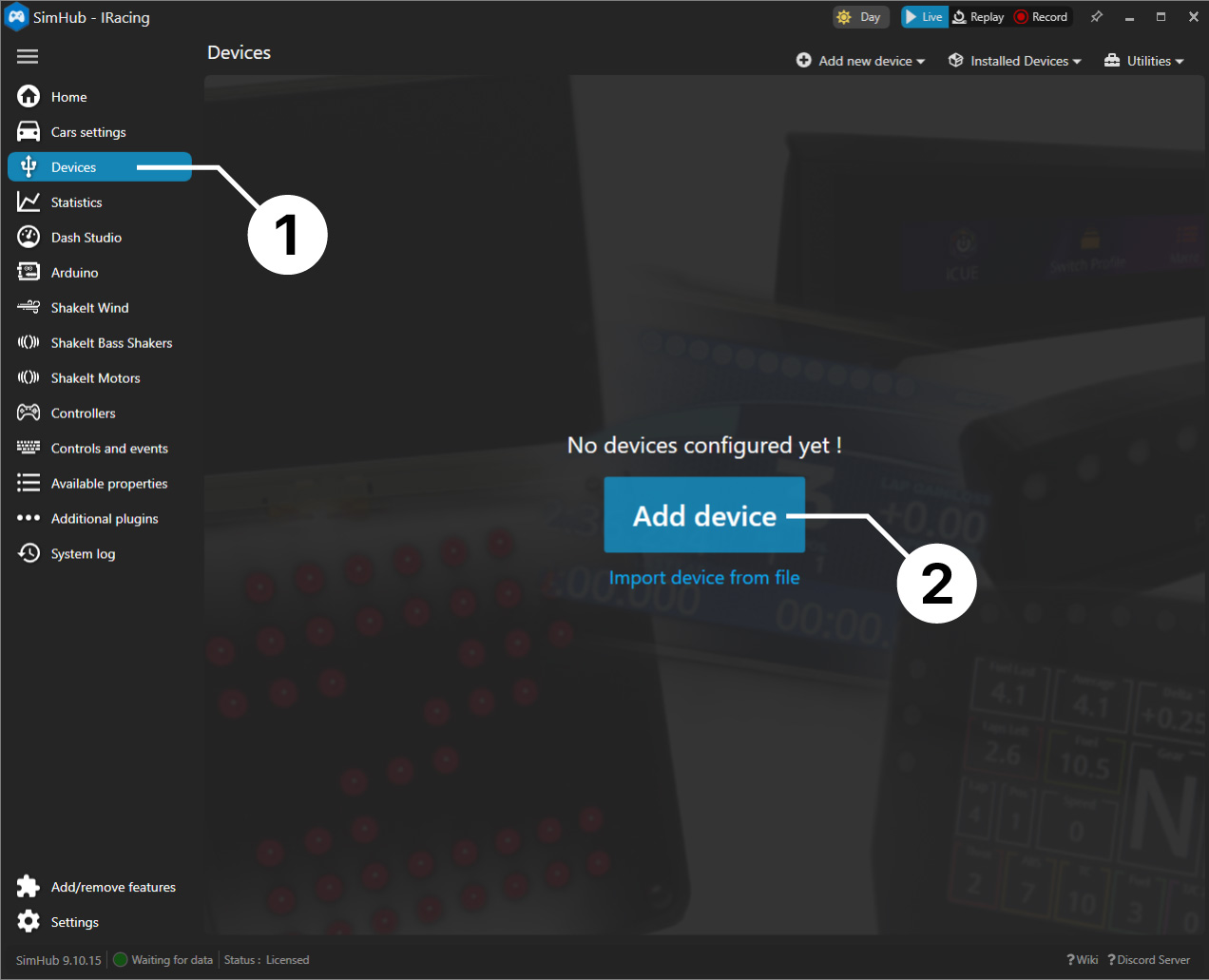
At BavarianSimTec, we are proud to offer our own software, the PitStopApp, which provides an easy setup and a seamless user experience, along with a wide range of features such as animations and car-specific rev lights. Of course, you can also use SimHub to control the LEDs if you prefer.

Connect to PC diagram

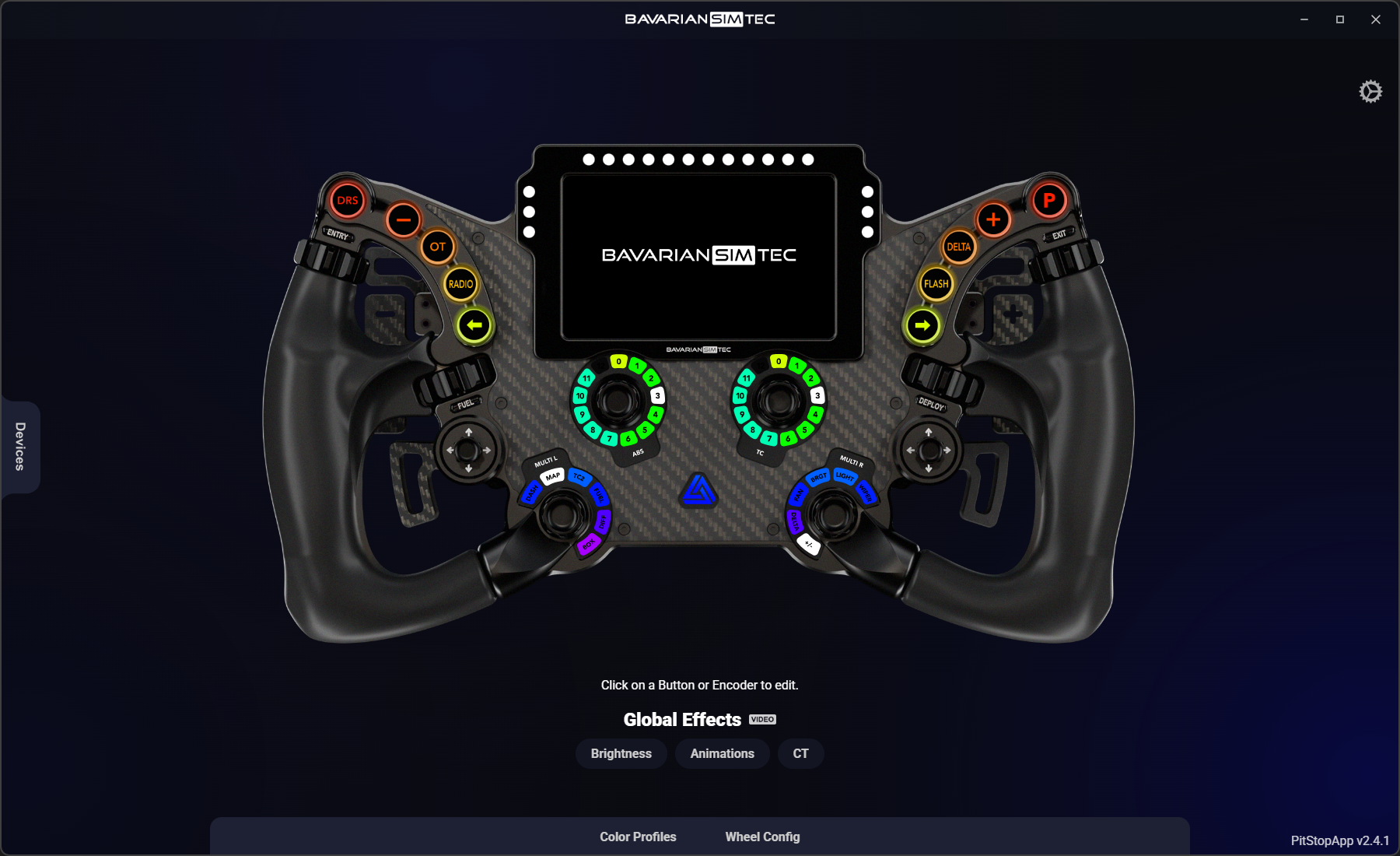
Install & Start PitStopApp

1
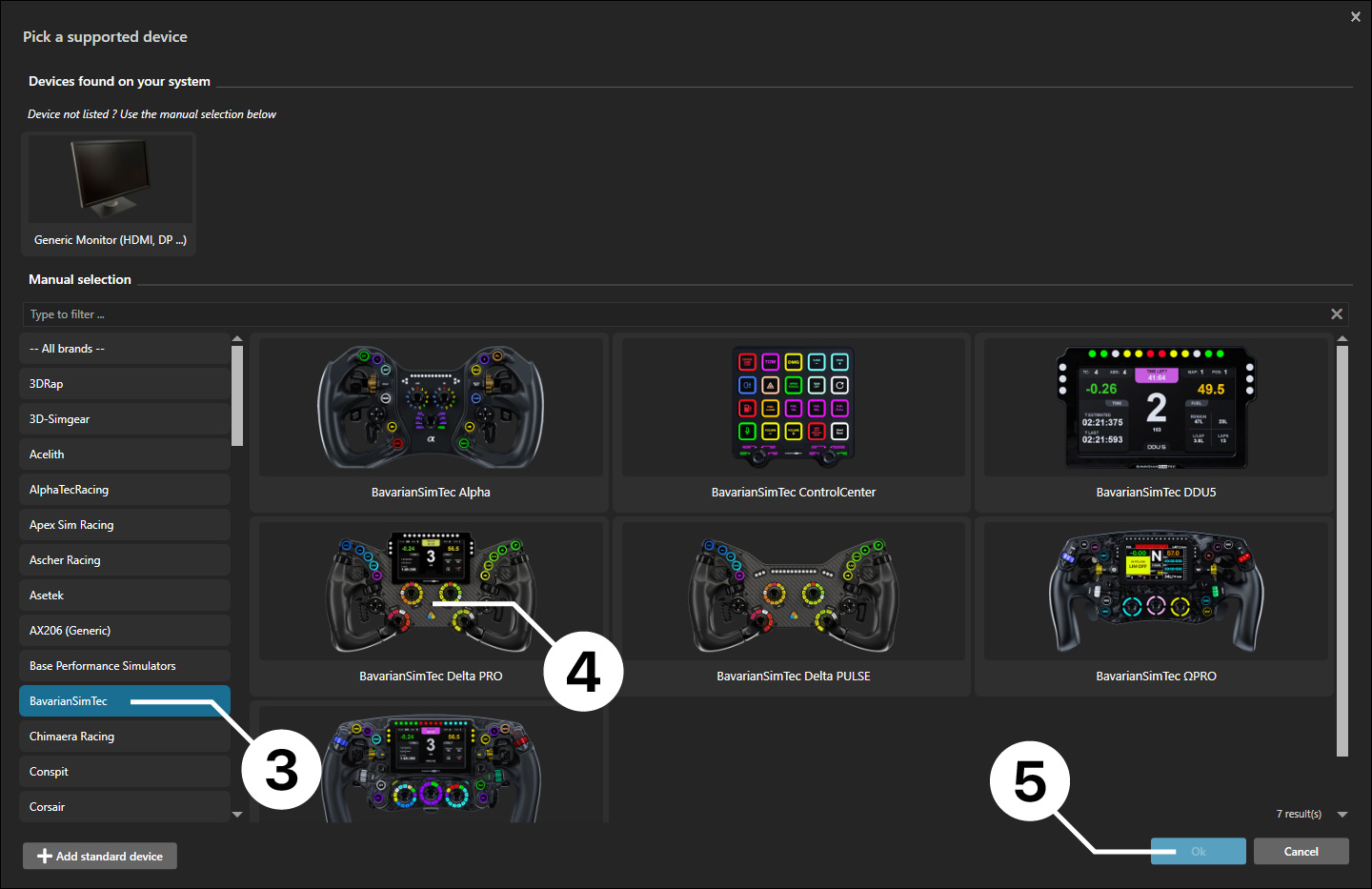
Connect Delta PRO
The PitStopApp will automatically connect to your device and display it on the main page. To select it manually, hover over the device drawer on the left side and choose Delta PRO.
2
Update Firmware
If a new firmware update is available, an Update Firmware button will appear. If no button is shown, your device is already running the latest firmware.
3
Choose Color Profile
Click Color Profiles in the bottom navigation menu and select the profile you like!
4
Choose Color Profile
Click Color Profiles in the bottom navigation menu and select the profile you like!

SimHub (optional)

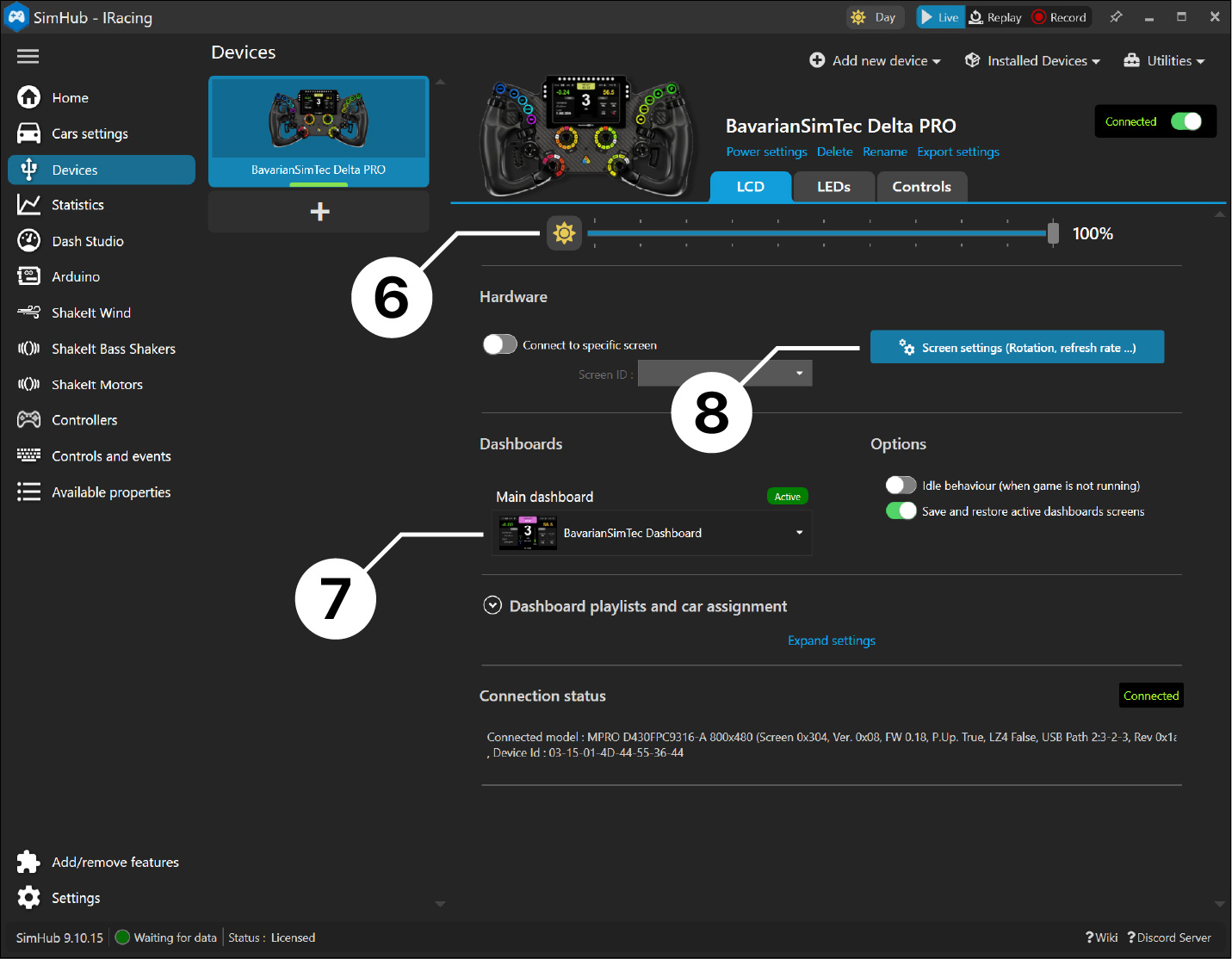
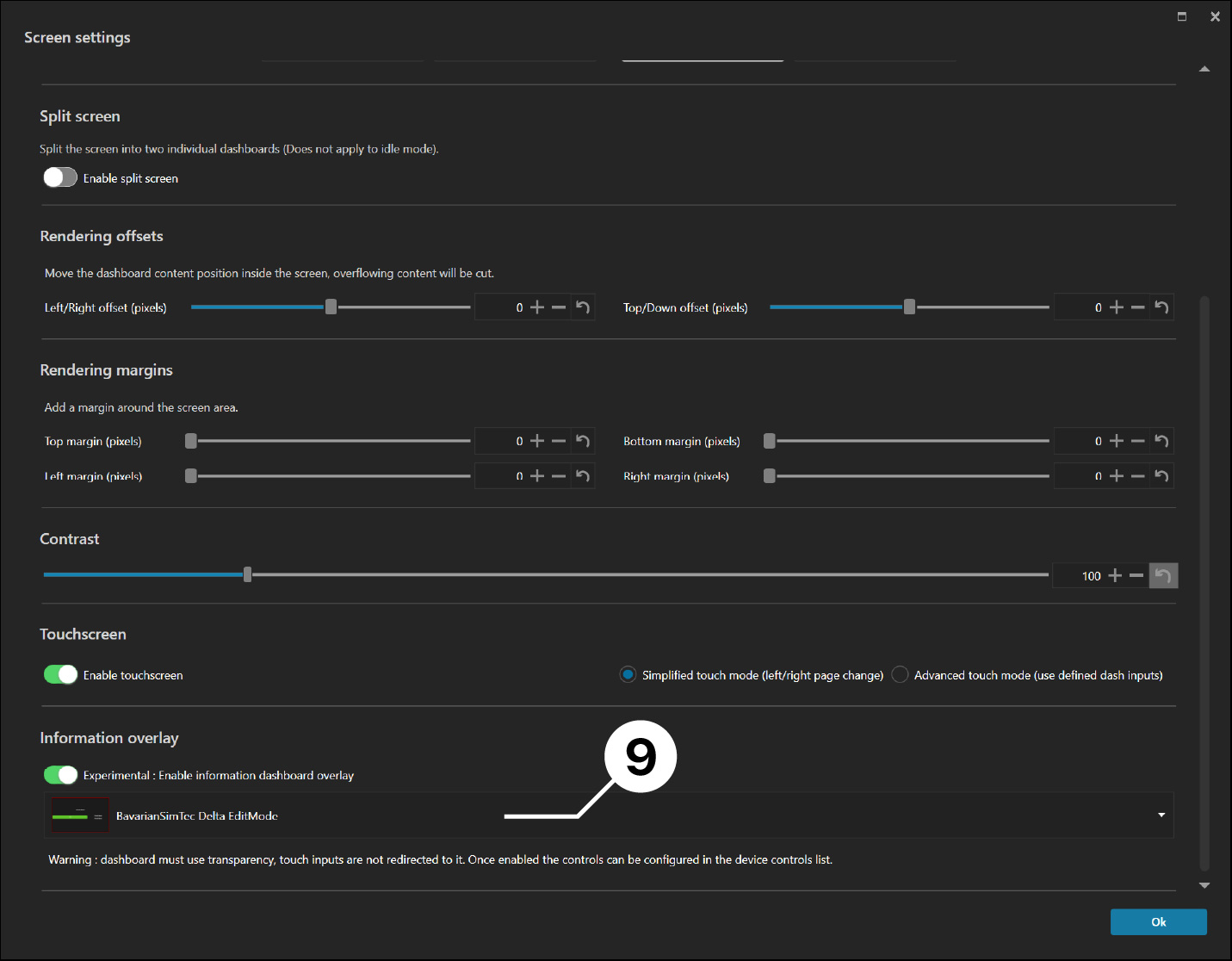
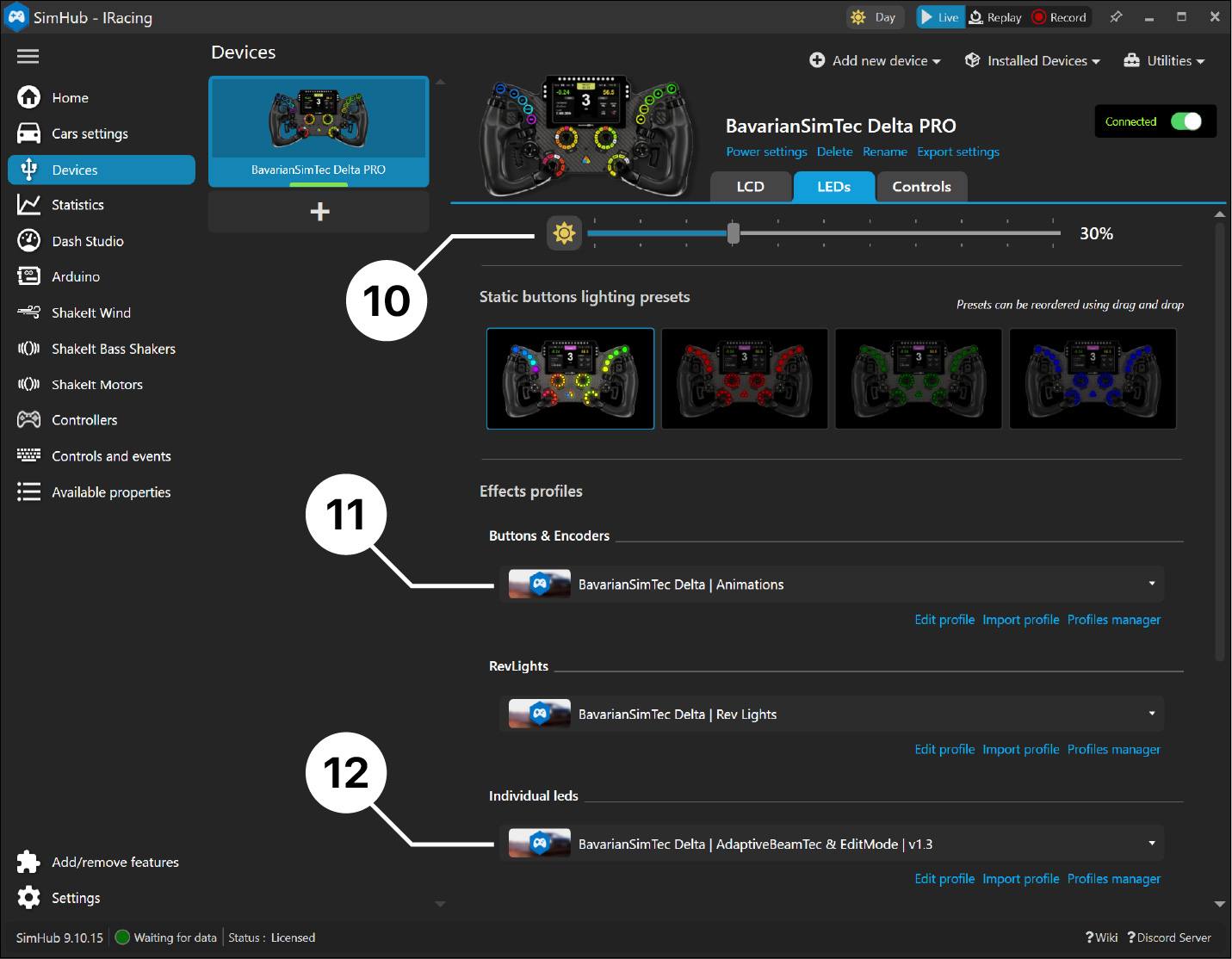
SimHub is a third-party application that can also control the LEDs of your device. While it offers full access to each individual LED, it requires intermediate coding knowledge. We therefore recommend SimHub only for users with advanced computer and programming experience.

Wheel Settings

Find out how you can setup your clutch, dial in the MultiLink and much more!